
...
| Nota |
|---|
Once you have activated multifactor authentication on the intranet and carried out the configuration steps, every session you initiate activates the mechanism to request the double factor, there is a notification in the Microsoft Authenticator app or a telephone call . To use the key only you must hold the key and press "#" |
| Advertencia |
|---|


...
On some mobile devices, if in the configuration of the Microsoft Authenticator application, the application blocker (digital or pin) is configured, you may receive a notification of an error denying access. In this case, we must deactivate the application blocker.
|
Example of accessing the Office 365 web page
This example is a valid series for access to O365, such as any of its applications, such as
...
Teams, OneDrive, etc.
- Accedemos la web Enter into o365.upv.es

Nos identificamos con nuestras credenciales de la UPV - We identiy ourselves with our UPV credentials.
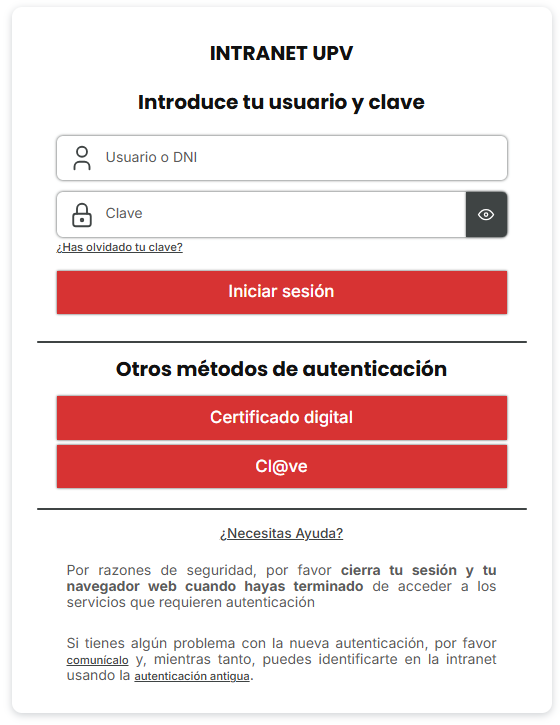
- Nos aparecerá un mensaje como el siguiente
- We will see a message like this:

- En este caso, la opción preferida es la de la app Microsoft Authenticator, pero si no la tuviéramos disponible en ese momento, podríamos cambiar a otro método de los que hemos configurado pulsando en el enlace que se muestra en pantalla.

- Manteniendo la opción (recomendada) de "aprobar una solicitud en la aplicación Microsoft Authenticator", veremos que, en el móvil, recibiremos una notificación que deberemos aprobar.

...
Ejemplo de conexión a la VPN
...
- In this case, the preferred option is the one from the Microsoft Authenticator app, but if you do not have it available at the moment, you can change it to another method that you have configured when you press it into the screen.
- Please note that the option (recommended) to "approve a request in the Microsoft Authenticator application" means that, on the mobile, we receive a notification that must be approved.
- If there is no pulse at the moment, you can access notifications and download the notification to be approved.

Example of VPN connection
Screen captures for connection to VPN are available on Windows 10.
How to configure VPN following the VPN guide in Windows 10/11

- We introduce the upvnet credentials ( usuario@upvnet.upv.es in the case of the UPVNET dominion or usuario@alumno.upv.es in the case of the ALUMNO dominion)

- Once you enter the credentials, indicate "comprobation of the initial information", it will be pending to approve the request on the mobile device.

- On your mobile, if you install the Microsoft Authenticator app, you will receive a notification that must be approved
Creamos la configuración VPN siguiendo la guía VPN en Windows10/11
- Nos conectamos a la VPN
- .
Introducimos las credenciales de upvnet (usuario@upvnet.upv.es en caso de dominio UPVNET o usuario@alumno.upv.es en caso de ser del dominio ALUMNO)
Una vez introducidas las credenciales, indicará "comprobación de la información de inicio", y estará pendiente de aprobar la solicitud en el dispositivo móvil.
En el móvil, donde tendremos instalada la app Microsoft Authenticator, recibiremos una notificación que deberemos aprobar
- Si no pulsamos en el momento, podemos acceder a 'notificaciones' y desplegar la notificación para aprobarla.
- Una vez aprobada la notificación en el dispositivo móvil, veremos que la VPN se ha conectado.

...
- If there is no pulse at the moment, you can access 'notifications' and download the notification to be confirmed.
What if we changed or lost our device on which we configured the Microsoft Authenticator app?
In this case, we must deactivate this device beforehand to avoid it being used by other people.
...
To do this, start your session using an alternative method (to validate with your mobile life in case of change and if the key is available) and go to the MFA configuration page (
...
) to remove the device from the list.
...
If you cannot initiate a session, we do not have another alternative method, as you can use your mobile or telephone, we can contact the CAU (
...
to request that our configuration be restored.
Every mobile device with the Microsoft Authenticator installed will appear on the previously cited page, which in reality will redirect it to the following web page
...
:
https://mysignins.microsoft.com/security-info
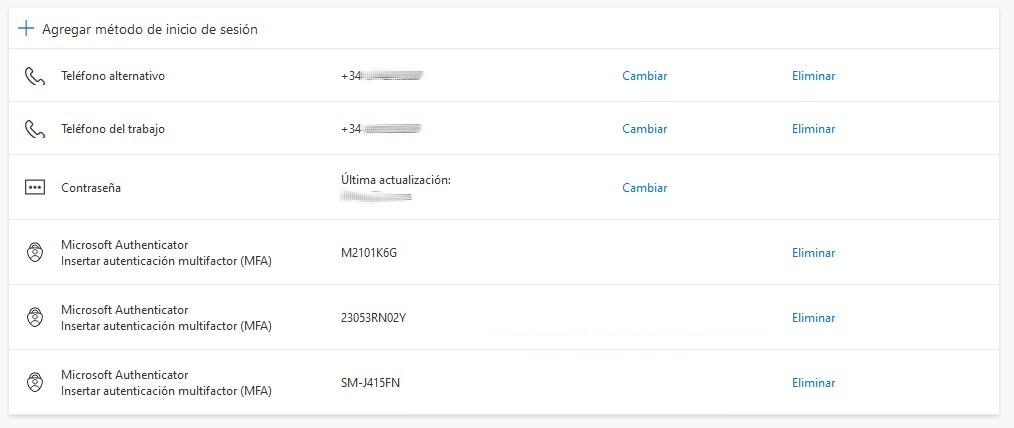 En este caso de ejemplo, el usuario tiene configurados dos móviles, por lo que en caso de pérdida de uno de ellos, puede utilizar el otro para autenticarse en los servicios de Microsoft
In this case, the user has configured mobile phones, so if one of them is lost, you can use the other device to authenticate with Microsoft services.
Sin embargo, en la parte de
...
base,
...
wemos very móviles registrados
...
dos los siguientes
...
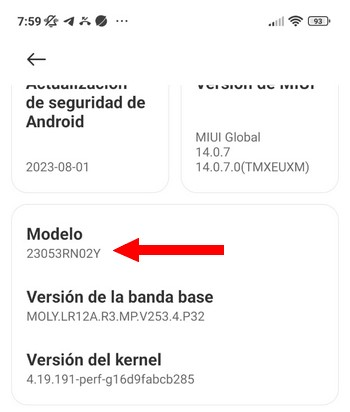
de modelo de móvil: M2101K6G, 23053RN02Y y SM-J415FN.
...
You have decided that the user has installed and configured the Microsoft Authenticator app on your mobile at the moment, but some of them have been physically destroyed, or the factory values have been restored, or there is nothing in it.
Sería conveniente pulsar sobre el enlace "Eliminar" para anular el móvil que ya
...
ne utilizando.
Si no sabemos cuál es, deberemos buscar (en los móviles que todavía utilizamos) el identificador del modelo del móvil, de modo que solo dejaremos activos los móviles de los que todavía disponemos y por lo tanto, el resto de identificadores podrán ser eliminados como dispositivos válidos de autenticación.
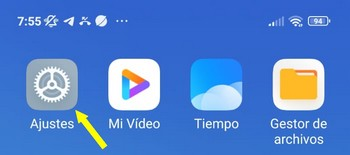
En el caso de Android 13, por ejemplo, podemos ver el modelo de móvil que tenemos desde:
Ajustes
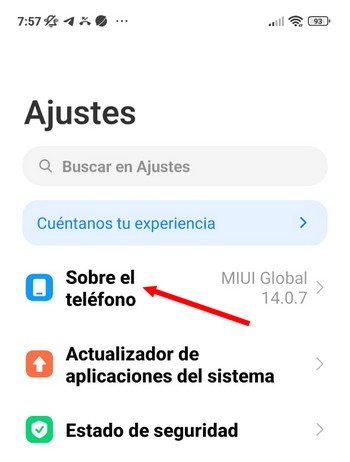
Seleccionamos dentro de Ajustes la opción denominada: "Sobre el teléfono"
...
If we do not know what to do, we will deactivate the mobile model identifier (on the mobile phones that we are using), so we only have activated the mobile phones that we have available and for so many, the rest of the identifiers can be eliminated as devices Validated authentication.
In the case of Android 13, for example, we can see the mobile model that we have:
Settings:
Select to adjust the option named: "about the phone"
Elegimos "Detailed and specific information"
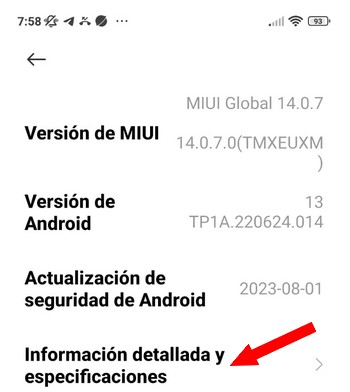
Y accedemos a la información del modelo.
...
I don't receive the verification call (2FA)
| Advertencia |
|---|
Los números utilizados por Microsoft para las llamadas de verificación pueden ser desconocidos o tener un formato poco habitual. Si estás iniciando sesión en un servicio que tiene configurada la verificación en dos pasos (2FA), una llamada de este tipo puede formar parte del proceso de autenticación. Si tienes dudas sobre la legitimidad de la llamada, no respondas y vuelve a iniciar sesión en el servicio. Si la llamada vuelve a recibirse coincidiendo con la nueva solicitud de acceso, podrás confirmar que forma parte del proceso de verificación. |
Si no recibes la llamada para completar la verificación en dos pasos, revisa la lista de números bloqueados de tu teléfono móvil.
En algunos casos, el número utilizado por Microsoft para realizar la llamada de autenticación ha sido bloqueado previamente por el propio usuario, creyendo que se trataba de una llamada de spam o fraudulenta, lo que impide que la llamada llegue al dispositivo.
Recomendación: Accede a la configuración de llamadas de tu teléfono y comprueba si el número que intenta realizar la verificación se encuentra en la lista de números bloqueados. Si es así, elimínalo de dicha lista y vuelve a solicitar la llamada de verificación.
Quiero configurar como método de autenticación 2FA la extensión del trabajo
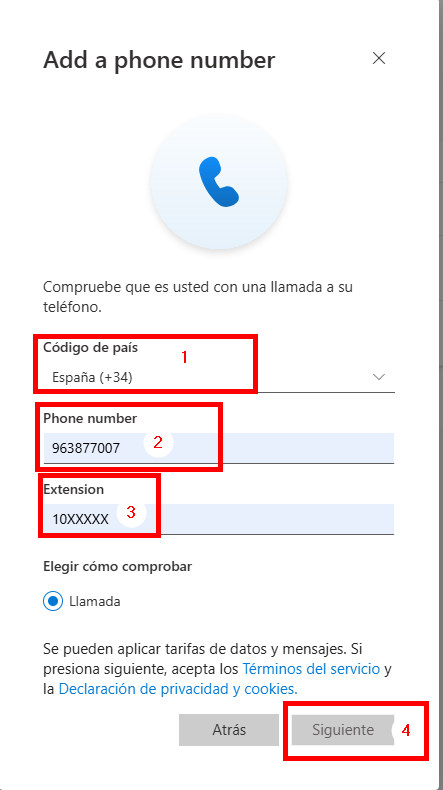
Existe la posibilidad de configurar como método de autenticación, la extensión telefónica del trabajo. Para ello, seguimos los siguientes pasos:
- Accedemos a la página de configuración del MFA ( https://www.upv.es/id/373
...
- Código de país: "España (+34)
- Phone number: 963877007
- Extesión: 10XXXXX (Dónde XXXXX es la extensión que tengamos)
...
The numbers used by Microsoft for verification llamadas may be misconceived or have a normal format. If you have initiated a session with a service that has configured step-by-step verification (2FA), a call of this type may be part of the authentication process. If you have any questions regarding the legitimacy of the complaint, we will not respond or ask you to initiate a session on the service. If the claimant has received your request coincident with the new request for access, you can confirm that this is part of the verification process. |
If you do not receive the message to complete the verification process, review the list of blocked numbers on your mobile phone .
In some cases, the number used by Microsoft to carry out the authentication call has been blocked beforehand by the user, believing that it is a spam or fraudulent call, which is why the call is based on the device.
Recommendation: Access the configuration of your phone's calls and dial it if the number you want to carry out verification is found in the list of blocked numbers. If so, eliminate the list and request the verification request.
...
| Incluir página | ||||
|---|---|---|---|---|
|