Multi-factor authentication (MFA) is a process by which, during a service session initiation (VPN, Microsoft 365, Teams, etc.), additional identification is requested by the user. For example, you can enter a code into your phone or approve it in a mobile app. To require a second form of authentication, security increases, because this additional factor is not easy to obtain or duplicate for an attacker.
For multi-factor authentication (MFA), we opted for a configuration with a double factor authentication (2FA).
To use multifactor authentication, it is necessary:
The double factor authentication is activated by fault for various colectivos, between which the ALUMNOS colectivo is displayed. |
It will be necessary to activate multifactor authentication on your intranet:


The first thing we need to configure is the authentication options available to us to allow second validation. To do this, please access the following links https://www.upv.es/id/373 and follow the following steps:
Introducing our new user: usuario@upv.edu.es


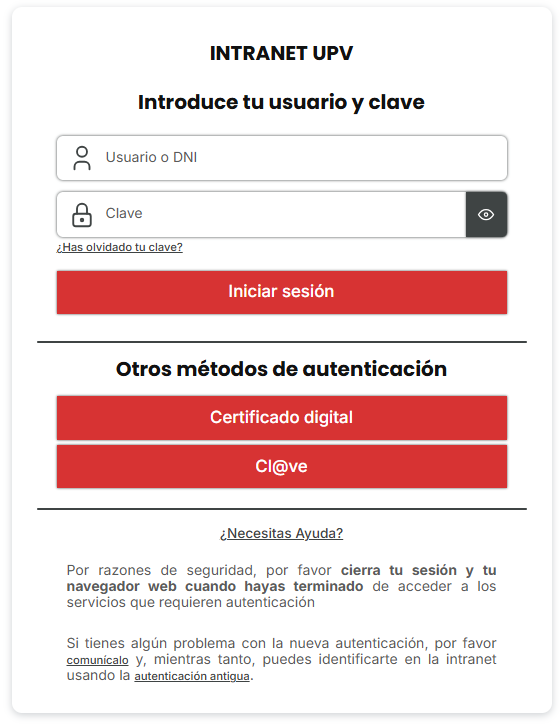


At this point, configure the options for validation. Of the available session initiation methods, the most recommended option is to use notifications in the mobile application , to make it more convenient and one of the most secure. This option requires installing an app on our new mobile phone, available for iOS and Android in the App Store and Google Play respectively: https://www.microsoft.com/es-es/security/mobile-authenticator-app
Please ensure that we have installed the authentic Microsoft application, there are applications with the same number and icons. The most secure format to download the authentic application is accessed via previous https://www.microsoft.com/es-es/security/mobile-authenticator-app , and scan the QR code that appears, where we will access the authentic application directly. |


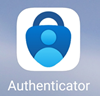


At any time, you can access the configuration, add other validation alternatives or modify the current configuration, access via https://www.upv.es/id/373 |
Once you have activated multifactor authentication on the intranet and carried out the configuration steps, every session you initiate activates the mechanism to request the double factor, there is a notification in the Microsoft Authenticator app or a telephone call . To use the key only you must hold the key and press "#" |
On some mobile devices, if in the configuration of the Microsoft Authenticator application, the application blocker (digital or pin) is configured, you may receive a notification of an error denying access. In this case, we must deactivate the application blocker.
|
This example is a valid series for access to O365, such as any of its applications, such as Teams, OneDrive, etc.

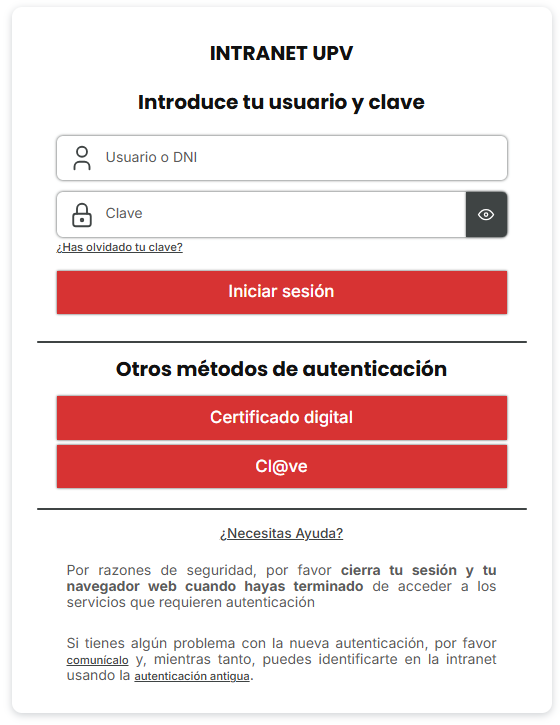


Screen captures for connection to VPN are available on Windows 10.
How to configure VPN following the VPN guide in Windows 10/11


In this case, we must deactivate this device beforehand to avoid it being used by other people.
To do this, start your session using an alternative method (to validate with your mobile life in case of change and if the key is available) and go to the MFA configuration page ( https://www.upv.es/id/373 ) to remove the device from the list.
If you cannot initiate a session, we do not have another alternative method, as you can use your mobile or telephone, we can contact the CAU ( https://cau.upv.es) to request that our configuration be restored.
Every mobile device with the Microsoft Authenticator installed will appear on the previously cited page, which in reality will redirect it to the following web page:
https://mysignins.microsoft.com/security-info
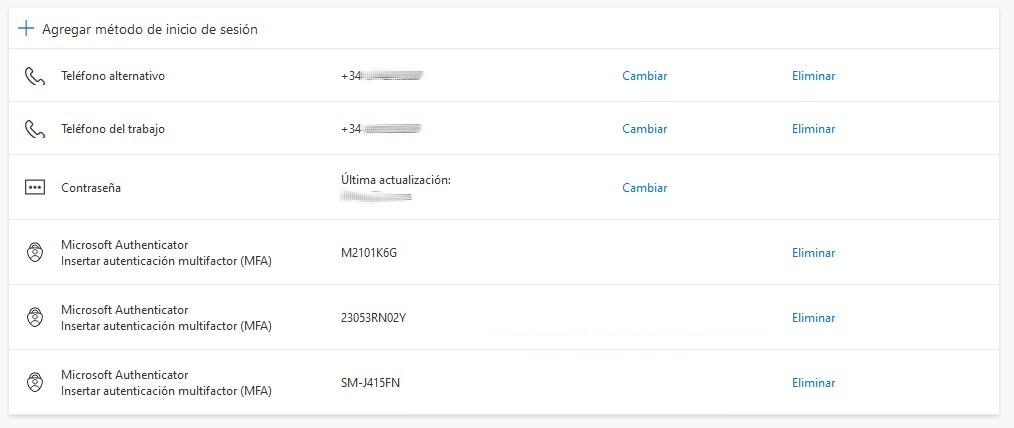
In this case, the user has configured mobile phones, so if one of them is lost, you can use the other device to authenticate with Microsoft services.
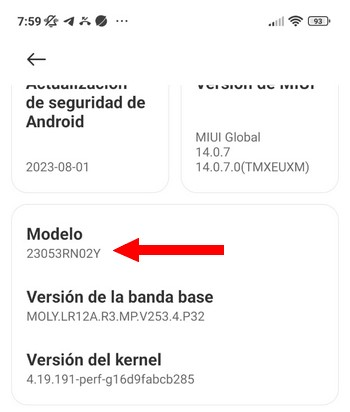
Sin embargo, en la parte de base, wemos very móviles registrados dos los siguientes de modelo de móvil: M2101K6G, 23053RN02Y y SM-J415FN.
You have decided that the user has installed and configured the Microsoft Authenticator app on your mobile at the moment, but some of them have been physically destroyed, or the factory values have been restored, or there is nothing in it.
Sería conveniente pulsar sobre el enlace "Eliminar" para anular el móvil que ya ne utilizando.
If we do not know what to do, we will deactivate the mobile model identifier (on the mobile phones that we are using), so we only have activated the mobile phones that we have available and for so many, the rest of the identifiers can be eliminated as devices Validated authentication.
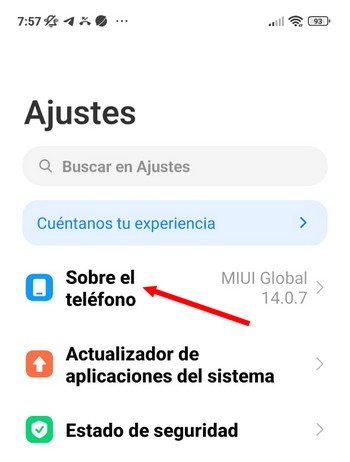
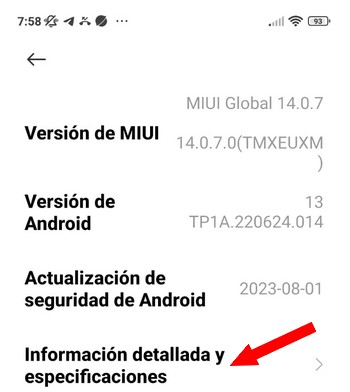
In the case of Android 13, for example, we can see the mobile model that we have:
Settings:
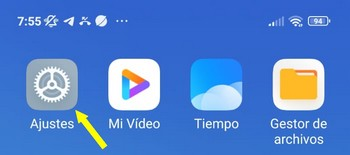
Select to adjust the option named: "about the phone"
Elegimos "Detailed and specific information"
Y accedemos a la información del modelo.
The numbers used by Microsoft for verification llamadas may be misconceived or have a normal format. If you have initiated a session with a service that has configured step-by-step verification (2FA), a call of this type may be part of the authentication process. If you have any questions regarding the legitimacy of the complaint, we will not respond or ask you to initiate a session on the service. If the claimant has received your request coincident with the new request for access, you can confirm that this is part of the verification process. |
If you do not receive the message to complete the verification process, review the list of blocked numbers on your mobile phone .
In some cases, the number used by Microsoft to carry out the authentication call has been blocked beforehand by the user, believing that it is a spam or fraudulent call, which is why the call is based on the device.
Recommendation: Access the configuration of your phone's calls and dial it if the number you want to carry out verification is found in the list of blocked numbers. If so, eliminate the list and request the verification request.

